
Part of our guide to AI Website Builders
How to Build a Small Business Website With Hostinger AI
Building a website for your small business used to mean hiring a developer, learning how to code, or spending hours working with website templates. AI website builders offer another way to get started.
In this guide, I’ll walk you through creating a small-business website using Hostinger AI Website Builder. I’ll use the same fictional plumbing and HVAC business concept, ComfortFlow Plumbing & Air, that I used during my hands-on testing.
You’ll see how to describe your business to the AI, generate an initial website, review its design, and make changes using plain-English instructions.
I’ll also explain an important lesson from my testing: AI-generated websites can include business claims or information you never provided. Before publishing, you need to verify the content, contact information, and any statements about your business.
The goal is to help you create a useful starting point for your business website without needing to write code.
What You Need Before Building Your Website
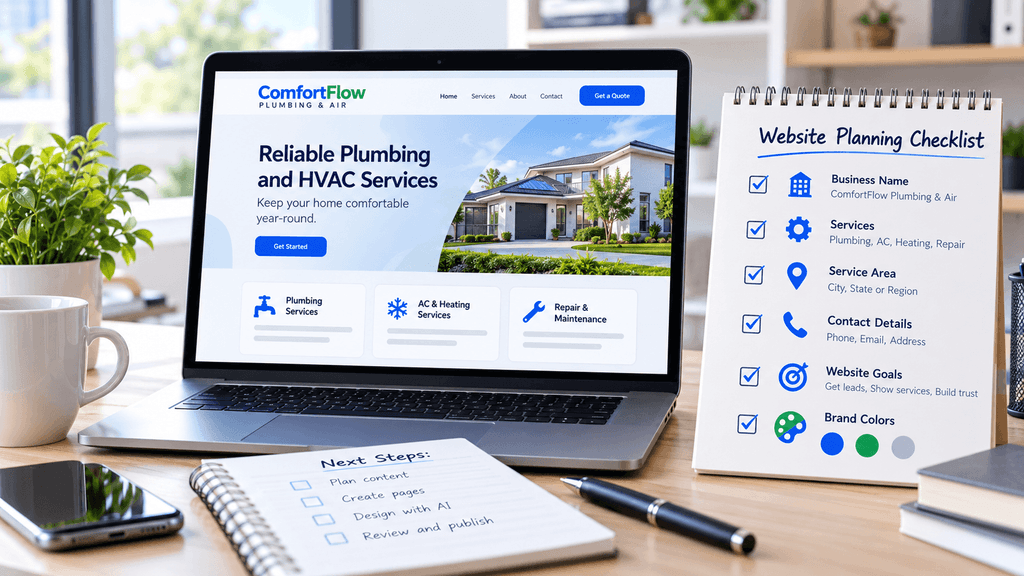
Start by gathering these details:
- Business name: The name you want visitors to see on your website.
- Business type: What your company does and who it serves.
- Products or services: The main things your business offers.
- Location or service area: Where you operate or which customers you serve.
- Website goals: Whether you want visitors to call, request an appointment, submit a contact form, or learn about your services.
- Design preferences: Your preferred colors, visual style, and overall appearance.
- Accurate business information: Your real phone number, email address, business hours, and other details you want published.
For my hands-on test, I prepared a fictional business called ComfortFlow Plumbing & Air. I described it as a plumbing and HVAC company serving homeowners in Orlando, Florida.
I wanted a clean, professional website with service information, clear calls to action, an FAQ section, and a way for homeowners to request service.
Because ComfortFlow was only a demonstration project, I did not use the generated website to represent a real operating company.
Beginner tip: You do not need to write a complicated technical specification. A clear description of your business, services, audience, and website goals is enough to get started. However, you should never treat AI-generated business details as verified facts.
Step 1: Open Hostinger AI Website Builder
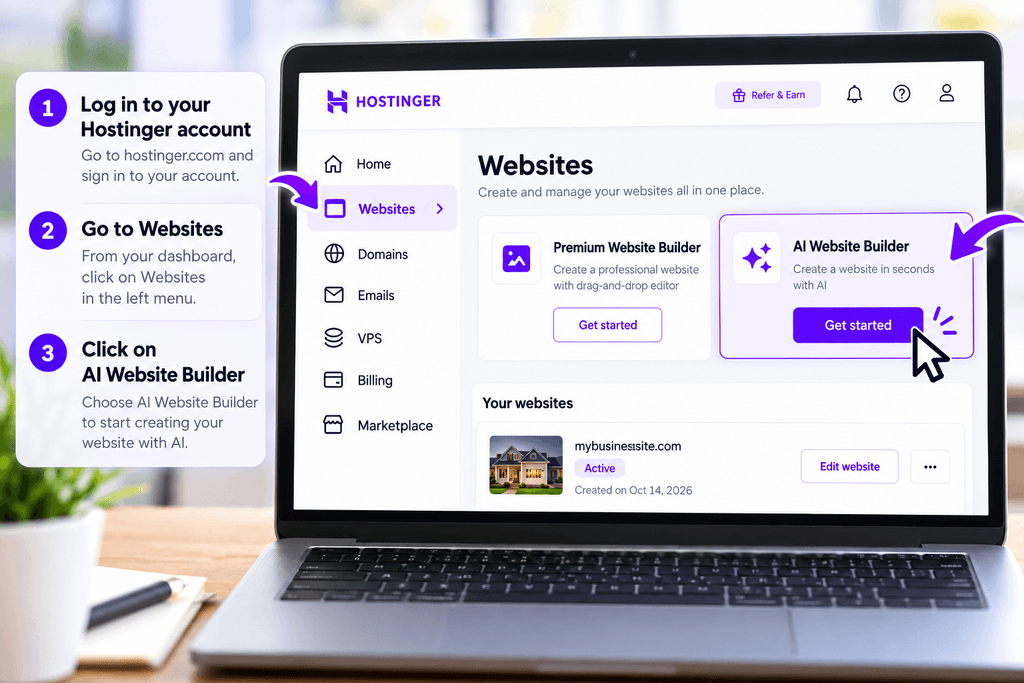
To begin, sign in to your Hostinger account and open the hPanel dashboard.
From the dashboard, navigate to the Websites section and select Add website. Hostinger will display the available website creation options.
During my hands-on test, I selected AI Builder because I wanted to see how much of the website-building process Hostinger could handle using artificial intelligence.
Hostinger offered two building experiences: Manual and Agentic. I selected Agentic because it allows you to describe your website and request changes using natural-language instructions.
This was particularly useful for my ComfortFlow Plumbing & Air demonstration because I wanted to build a complete small-business website without manually designing every section.
Once I selected Agentic mode, I was ready to describe the business and tell Hostinger what kind of website to create.
Step 2: Describe Your Business to Hostinger AI
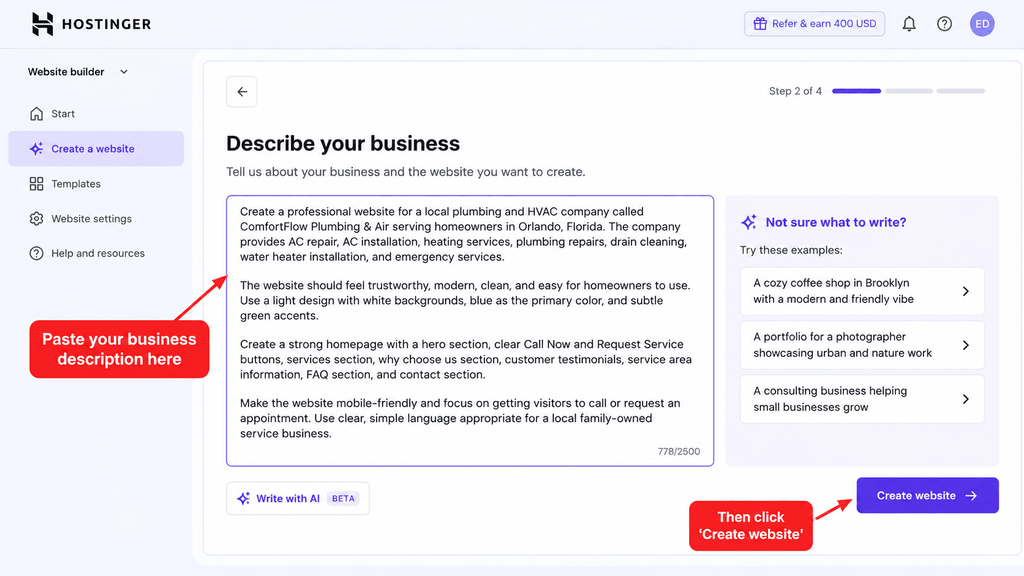
After opening Hostinger AI Website Builder and selecting Agentic mode, the next step was describing the website I wanted to create.
For my hands-on test, I used a fictional local business called ComfortFlow Plumbing & Air. I wanted to see whether Hostinger could turn a detailed business description into a professional website without requiring me to design every section manually.
Here is the prompt I entered into Hostinger:
Create a professional website for a local plumbing and HVAC company called ComfortFlow Plumbing & Air serving homeowners in Orlando, Florida. The company provides AC repair, AC installation, heating services, plumbing repairs, drain cleaning, water heater installation, and emergency services.
The website should feel trustworthy, modern, clean, and easy for homeowners to use. Use a light design with white backgrounds, blue as the primary color, and subtle green accents.
Create a strong homepage with a hero section, clear Call Now and Request Service buttons, services section, why choose us section, customer testimonials, service area information, FAQ section, and contact section.
Make the website mobile-friendly and focus on getting visitors to call or request an appointment. Use clear, simple language appropriate for a local family-owned service business.
After receiving my instructions, Hostinger asked how homeowners should request service through the website.
I selected the option to show services and collect requests, allowing visitors to call or submit a request form without online checkout.
This was a useful part of the setup because it helped define what the website needed to accomplish.
What beginners can learn from this step: Describe your business, services, audience, design preferences, and desired customer actions as clearly as possible. You can adapt the example above to your own business instead of copying the plumbing and HVAC details.
Important: My prompt requested customer testimonials as a website section, but I did not provide real customer reviews. Hostinger later generated unsupported business claims and fictional testimonials. This is why every AI-generated statement must be checked before publishing.
Step 3: Review Your AI-Generated Website
After I submitted my business description and selected how customers should request service, Hostinger generated an initial website for ComfortFlow Plumbing & Air.
The first version was more complete than a simple homepage. It included a navigation menu, a prominent hero section, service descriptions, calls to action, service-area information, frequently asked questions, and a contact section.
The design followed much of what I requested. Hostinger used a clean layout with blue, white, and green accents, along with images related to plumbing and air-conditioning services.
What I liked about the initial result
The website already had a useful structure for a local service business. Visitors could identify the services offered, understand the service area, and find ways to contact the company.
I also checked the mobile preview. The navigation changed to a hamburger menu, and the main calls to action adjusted to the smaller screen.
What needed correction
Although the design looked professional, some of the generated content was not accurate.
Hostinger introduced business information I had never provided, including customer ratings, review counts, years in business, testimonials, warranty statements, and other credibility claims.
Because ComfortFlow was a fictional demonstration business, those claims were unsupported.
This is an important lesson for beginners: a professional-looking AI-generated website is not necessarily ready to publish.
Before moving forward, review every section carefully. Check the business name, services, contact details, customer reviews, credentials, guarantees, and any statistics. Remove or replace anything you cannot verify.
Beginner tip: Review the entire website on both desktop and mobile before making major changes. This helps you identify what the AI created correctly and what still needs your attention.
Step 4: Edit Your Website With Hostinger Agentic AI
Once Hostinger generated my ComfortFlow website, I wanted to see whether I could improve it without manually editing the page layout or writing code.
I used Hostinger’s Agentic AI to request changes in plain English. Instead of describing technical instructions or editing website files myself, I explained what I wanted the AI to change.
Changing the homepage headline
My first test was a simple headline change. I asked Hostinger to replace the original hero headline while keeping the rest of the design unchanged.
Here is the exact instruction I used:
Change the hero headline to “Orlando Plumbing & AC Service You Can Count On.” Keep the current design, colors, layout, images, and everything else exactly the same.
Hostinger successfully changed the headline. The surrounding hero layout, colors, and imagery appeared to remain consistent.
This showed me that Agentic AI could handle a targeted content change without requiring me to rebuild the section manually.
Adding a new website section
Next, I tested something more complicated: adding an entirely new section to the homepage.
I asked Hostinger to create a three-step service process between the Why Us and Customer Reviews sections.
The requested steps were:
- Tell Us What’s Wrong
- We Diagnose the Problem
- We Fix It Right
Hostinger created the new section with matching typography, spacing, and blue-and-green styling.
In my test, this was one of the most useful Agentic AI features because I could describe the section I wanted instead of designing each element individually.
What should beginners know?
Plain-English editing can make website changes easier, but it does not eliminate the need to check the results.
After each AI-generated change, review the updated section, confirm that other content remains intact, and check the mobile layout.
For important changes, make one specific request at a time. This makes it easier to identify what changed and whether the result matches your instructions.
Step 5: Check Your AI-Generated Content for Accuracy
One of the most important lessons from my Hostinger AI Website Builder test was that a professional-looking website is not necessarily an accurate website.
When Hostinger generated the ComfortFlow Plumbing & Air website, it included business information I had never provided. This included customer ratings, review counts, years in business, warranty claims, and fictional testimonials.
These details made the demonstration website appear more established, but they were not verified.
I asked Hostinger’s Agentic AI to remove the unsupported claims throughout the website. The AI completed much of this cleanup, but it also removed entire sections that depended on the invented information.
Before publishing your own AI-generated business website, carefully check:
- Business name, address, phone number, and email
- Customer testimonials, ratings, and reviews
- Years of experience and completed-project statistics
- Licenses, certifications, and insurance claims
- Pricing, warranties, and service guarantees
- Business hours and emergency response promises
- Contact forms, buttons, and navigation links
Replace incorrect information with verified details. If you cannot verify a claim, remove it rather than allowing visitors to believe it is true.
Beginner tip: Treat AI-generated website content as a first draft. You are responsible for checking the information before customers see it.
Step 6: Test Your Website Before Publishing
After reviewing your AI-generated content, the next step is to test how your website works.
A website can look professional while still having broken links, incorrect contact information, or forms that do not work as expected.
During my Hostinger AI Website Builder test, I checked the ComfortFlow website in desktop and mobile previews. The mobile version automatically adjusted the navigation, layout, and call-to-action buttons for a smaller screen.
However, a responsive design does not automatically mean every website feature works correctly.
Before publishing your business website, check the following:
- Desktop appearance: Make sure the layout, images, headings, and buttons display correctly.
- Mobile appearance: Check that the navigation menu works, text remains readable, and visitors can easily find your contact information.
- Navigation links: Open each menu item and confirm it leads to the correct section or page.
- Call buttons: Verify that phone links use your actual business phone number.
- Contact forms: Submit a test request and confirm that the information is received where you expect it.
- Images: Make sure images are appropriate for your business and do not misrepresent your staff, projects, or facilities.
- Business information: Check your services, service areas, hours, and contact details one final time.
For the ComfortFlow demonstration, Hostinger’s Agentic AI reported that the service-request form was configured to collect submissions. I did not independently verify the complete form-delivery process, so I would test that before using the website for real customers.
Beginner tip: Test your website as if you were a customer visiting it for the first time. Try to find a service, contact the business, and submit a request. If anything is confusing or broken, correct it before publishing.
Step 7: Publish Your Website
Once you have reviewed your website’s content, checked its design, and tested its important features, the next step is making it available to visitors.
Hostinger AI Website Builder provides a publishing workflow that allows you to move from editing your website to making it accessible online. The exact options may depend on your account, plan, and domain setup.
Before publishing, make sure you have a domain name you want to use for your business. A domain is the web address customers enter into their browsers to visit your website.
When you are ready to publish:
- Review the website one final time in the editor.
- Locate the publishing option in Hostinger AI Website Builder.
- Follow the instructions shown for publishing and connecting your domain, if applicable.
- Open the published website in a separate browser tab.
- Confirm that the website loads correctly and that visitors can access its important pages.
Important: I did not publish the fictional ComfortFlow Plumbing & Air website as a real business website. This section explains the general publishing process rather than claiming that I personally completed every publishing or domain-connection step during my test.
Beginner tip: Publishing is not the same as finishing. After your website goes live, continue checking its content, keeping business information accurate, and updating the website as your services change.
Step 8: What to Do After Publishing Your Website
Publishing your small-business website is an important milestone, but your work doesn’t end when the website goes live.
A business website should help potential customers understand what you offer, trust your business, and contact you easily. After publishing, take time to check that everything works as expected.
Here are eight important things to do after launching your website:
- Test your contact forms. Submit a test request and confirm that it reaches the correct destination.
- Check your phone number and email address. Make sure visitors can contact your business using accurate information.
- Review your website on mobile devices. Check that the navigation, buttons, images, and forms work on smaller screens.
- Verify your business information. Confirm your services, operating hours, service areas, and any claims about your company.
- Check every important link. Make sure your navigation, service pages, and calls to action lead to the correct destinations.
- Review your page titles and descriptions. Give important pages clear, accurate titles and descriptions that explain their content.
- Set up Google Search Console. This free tool can help you understand whether Google can discover and index your website.
- Keep your content updated. Review your website when your services, prices, hours, or contact information change.
You should also periodically check how quickly your website loads and whether visitors encounter broken pages or technical errors.
For the fictional ComfortFlow project, I did not complete these post-launch checks on a public business website because I intentionally kept the demonstration unpublished.
Beginner tip: Focus on accuracy and usability before adding advanced marketing tools. A simple website with correct information and working contact options is more useful than a complicated website that confuses visitors.
Final Thoughts: Building a Small Business Website With Hostinger AI
Hostinger AI Website Builder can make creating a small-business website more approachable, especially if you don’t have coding or web design experience.
During my hands-on test with ComfortFlow Plumbing & Air, I used Hostinger’s AI tools to generate a website, change the homepage headline, add a three-step service process, and remove unsupported business claims using plain-English instructions.
The experience showed me how useful AI-assisted website building can be. Instead of manually creating every section, I could describe what I wanted and let the AI handle much of the initial work.
However, the test also revealed an important limitation. Hostinger generated business details I had never provided, including customer reviews, ratings, and other credibility claims. Although I was able to request corrections, some entire sections were removed during the cleanup.
For that reason, I recommend treating an AI-generated website as a starting point rather than a finished product. Review every business claim, replace inaccurate information, and test important features before publishing.
If you want to understand the platform’s strengths and limitations in greater detail, read my Hostinger AI Website Builder hands-on review. You can also explore my Hostinger vs Wix comparison to see how the two platforms performed when I tested them using the same fictional business concept.
The most important takeaway is simple: AI can help you build your website faster, but you are still responsible for making sure the finished website is accurate, useful, and trustworthy.

How Much Does It Cost to Build a Website With AI in 2026?
Published
How much does it cost to build a website with AI in 2026? Compare Hostinger, Wix, and Squarespace pricing, renewal fees, and hidden costs.